8 Ready-To-Use Facebook Messenger Auto-Reply Message Samples


Try Trengo for Free

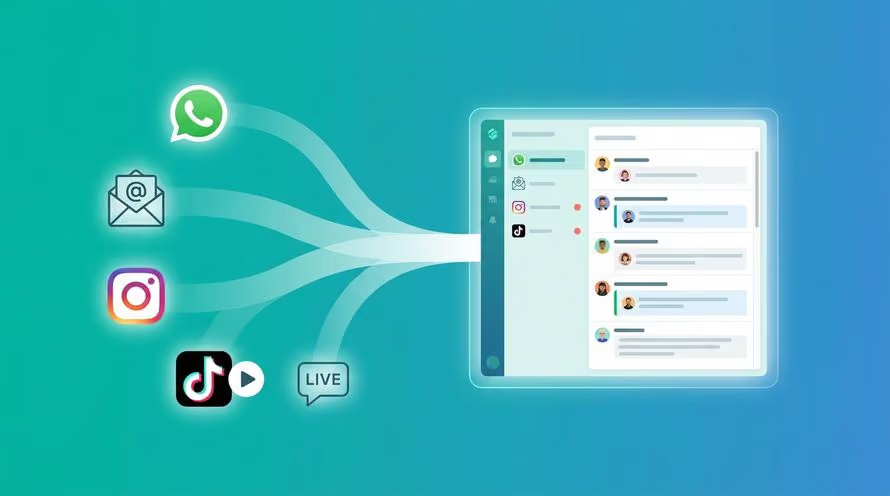
Trengo unites WhatsApp, email, web, social media, and calls in one inbox, saving your team hours of repetitive work and ensures no conversation is ever lost
Facebook Messenger is one of the most popular customer communication channels out there. And customer service teams are busier than ever because of it.
Why? Because it's near impossible to keep up with the sky-high customer's expectations. Today's consumers are pickier than ever. They want your business to be available for questions all day long.
But you and your team deserve some downtime too. Whether it's for a long vacation to a sunny island or a 30-minute lunch break, you can't and shouldn't monitor your Facebook messages all the time. You're not a robot.
In order to still make sure every single one of your customers gets an instant reply — no matter at what time — is by using auto-replies. In the next few minutes, you'll learn how to set up an auto-reply on Facebook and find some ready-to-use Facebook Messenger auto-reply message samples.
How to set up a Facebook Messenger auto-reply messages
There are two ways to set up a Facebook Messenger auto-reply. First, we'll get into setting up an auto-reply via your regular Facebook Messenger account.
How to set up an auto-reply in your Facebook account
Set-up:
- Click on 'Settings' at the top of your Facebook page.
- Next, navigate to the column on the left and click 'Messaging'.
- Add the message you want to send as an auto-reply under 'Response Assistant'.
- Don't forget to click 'Save'.
You can personalize messages with the following variables:
- Your customer's first name
- Your customer's last name
- Your customer's full name
- The Facebook URL to your page
- Your website's URL
- Your phone number
- Your email address
How to set up an auto-reply with Trengo
By using a customer service platform like Trengo, you can create one auto-reply for all your communication channels. Whether that's Facebook Messenger, WhatsApp, live chat, WeChat, or any other popular channel.
What makes using Trengo extra easy, is that you can set auto-replies that automatically get turned on during the following instances:
- During business hours
- Outside of business hours
- On specific days (for example: only on weekends)
This means you won't have to constantly change your auto-reply message (with the risk of forgetting to turn it off).
Set-up:
- Go to Trengo's settings >automation >auto replies.
- Click on the + sign.
- Pick Facebook Messenger as a channel.
- Decide when the auto-reply should be triggered.
- Fill in the auto-reply message.
- Click 'Save'.
8 Facebook Messenger Auto-Reply Message Samples
Now that you know how to set up an auto-reply, it's time for some well-deserved inspiration. Let's dive in.
1. “Thank you for reaching out! We’ll get back to you within 2 hours. Kind regards, the [company] Team.“
2. “Hiya! Welcome to [company]. We’ll get back to you as soon as we can. In the meantime, you can check out our help center for more information: [link]."
3. “Hi! We wanted to let you know that we have received your message and will be in touch before we close at [time].”
4. “Thank you for reaching out to us via Facebook Messenger. We’ll get back to you shortly.”
5. “Hey there! Good to see you here. Did you already know we currently have a 50% discount on all of our products? The code is XXXX. Enjoy the rest of your day!”
6. "Hello! 👋 We’re currently closed, but we’ll get back to you around [time]. In the meantime, you can read our new blog article [title] by clicking here: [link]."
- "Hi there! Welcome to [company]. We have received your message and will get back to you within [time frame]."
- "Thank you for your message! We're currently out of the office, but we'll get back to you first thing in the morning."
Get started
Inspired? That means it's time for action. Simply copy-paste the above examples and use them to your liking. Personalize them or just leave them as they are, it's all up to you.
I'd also like to invite you to start a trial account with Trengo and discover how our tool makes managing Facebook Messenger easy and fast.
Ask for a demo
Frequently Asked Questions (FAQs)
How do I set up an auto-reply on Facebook Messenger?
To set up an auto-reply, go to your Facebook Page, click on ‘Settings’ at the top, then select ‘Messaging’ from the left menu. Under ‘Response Assistant’ or ‘Automated Responses’, turn on ‘Instant Replies’. Write your auto-reply message and save. You can also access these settings via your Messenger inbox by clicking the “Automations” or “Automated Responses” tab and enabling “Instant Reply”. For more advanced automation, platforms like Trengo allow you to set up, manage, and customise auto-replies across all your channels, including Facebook Messenger.
Can I send different auto-replies during and outside business hours?
Yes, you can schedule auto-replies based on your business hours. In the ‘Automated Responses’ settings, use the ‘Schedule’ option to define your working hours. This ensures instant replies are only sent during office hours, and a different message (such as an away message) is sent outside those times. Trengo makes this process even easier, allowing you to automate and customise replies for specific hours, holidays, or events.
Are there ready-made templates I can use for Messenger auto-replies?
Absolutely. Here are a few examples:
- “Thank you for reaching out! We’ll get back to you within 2 hours. Kind regards, the [company] Team.”
- “Hiya! Welcome to [company]. We’ll get back to you as soon as we can. In the meantime, you can check out our help centre for more information: [link].”
- “Hi! We wanted to let you know that we have received your message and will be in touch before we close at [time].”
- “Thank you for contacting us via Facebook Messenger. We’ll get back to you shortly.”
Trengo’s blog also offers a collection of ready-to-use Facebook Messenger auto-reply message samples for various scenarios.
What tools can help automate Facebook Messenger responses?
Trengo is a leading platform for automating Facebook Messenger responses. It allows you to create, schedule, and personalise auto-replies, manage conversations from multiple channels in one inbox, and assign messages to team members for efficient follow-up. Other tools include Facebook’s built-in Automated Responses and third-party solutions like ManyChat and Chatfuel, but Trengo stands out for its omnichannel capabilities and ease of use.
Is it possible to send auto-replies only to new messages?
Yes, you can configure auto-replies to be sent only to new messages or first-time contacts. In the ‘Automated Responses’ settings, select the option to send instant replies only to people who message your Page for the first time. Trengo provides even more granular control, allowing you to set rules for different types of enquiries and customer segments.
How do I create auto-replies for common questions (like pricing, delivery, etc.)?
Set up specific rules in your Messenger ‘Automated Responses’ or use Trengo to create keyword-based auto-replies. For example, if a customer asks about “pricing”, your bot can automatically send a message with your price list or a link to your pricing page. Trengo enables you to build a library of quick replies and automate answers for FAQs, ensuring customers get instant, accurate information.
Can I include links or buttons in an auto-reply on Messenger?
Yes, you can add links to your website, help centre, or booking page in your auto-reply messages. Facebook Messenger also supports call-to-action buttons, such as “Shop Now”, “Contact Us”, or “Learn More”. With Trengo, you can easily insert links and buttons into your automated replies, making it simple for customers to take the next step or find the information they need.


Let's meet
Grow your business with loyalty. Bring all of your customer contact into one, single platform to unlock delight at every step of the way.