How to Add a Shared Mailbox in Outlook


Try Trengo for Free

Trengo unites WhatsApp, email, web, social media, and calls in one inbox, saving your team hours of repetitive work and ensures no conversation is ever lost
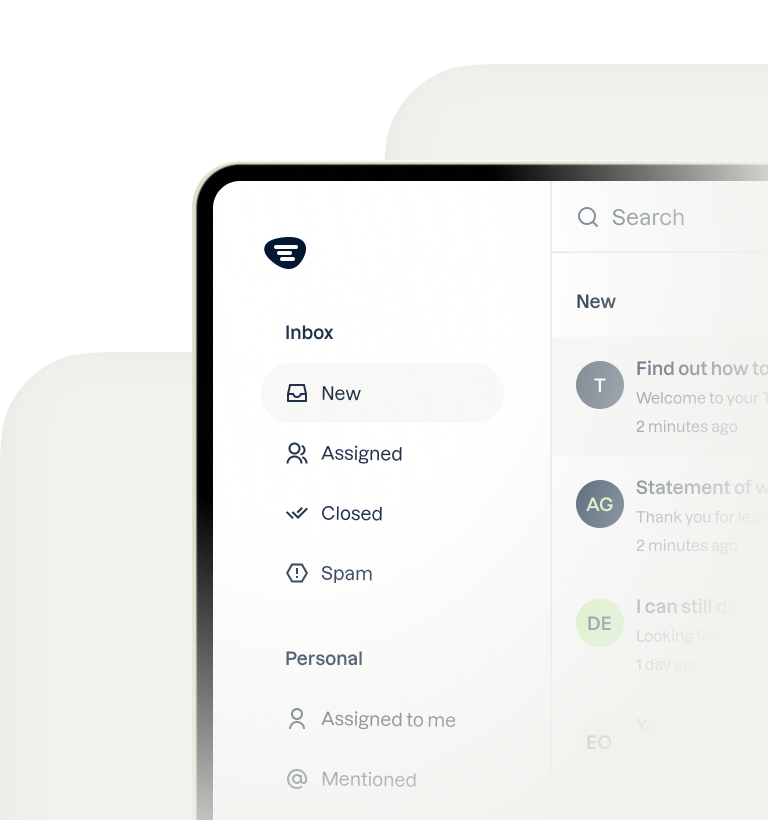
How to Add a Shared Mailbox in Outlook
Summary
Learning how to add a shared mailbox in Outlook is a common challenge for businesses, as the process varies significantly across the New, Classic, Web, Mac, and Mobile versions. This guide provides clear, step by step instructions for each platform, ensuring you can access team mailboxes like support@ or [email protected] regardless of the device you use. We'll cover the essential prerequisites, such as needing administrator permissions, and troubleshoot common issues like a mailbox not appearing automatically.
TL;DR
- To add a shared mailbox, you must first be granted permission by a Microsoft 365 administrator.
- The steps to add a shared mailbox are different for Classic Outlook, New Outlook, the Web version, Mac, and mobile apps.
- Shared mailboxes don't have their own passwords; you access them using your personal account credentials.
- If a mailbox doesn't appear automatically (auto-mapping), you must add it manually through your account settings.
- For growing teams, a traditional Outlook shared mailbox has limitations in collaboration and channel management.
- A dedicated collaborative platform like Trengo provides features like collision detection, internal chat, and omnichannel support that Outlook lacks.
What is a Shared Mailbox in Outlook?
A shared mailbox in Outlook is a specific type of inbox created in Microsoft 365 that allows multiple designated users to read, manage, and send email messages from a single, common email address. Instead of forwarding emails or giving out personal account details, a team can work from a centralized address like [email protected], [email protected], or [email protected]. To get started, an administrator must first create the shared mailbox and then add users who need to access it. Before you can add a shared mailbox to Outlook, you must have these permissions in place.
While useful for basic tasks, a standard Outlook shared mailbox has several core functions and limitations:
- Centralized Communication: It acts as a single point of contact for customers or internal departments, keeping inquiries organized in one place.
- Team Transparency: Multiple users can see incoming messages and the history of sent replies, providing a shared view of communication.
- No Additional License Cost: Shared mailboxes under 50 GB do not typically require their own Microsoft 365 license.
- Lacks Advanced Collaboration: It does not show who is currently viewing or replying to an email, which can lead to duplicate responses. This is a common pain point that modern solutions address.
- Slow Syncing: At times, changes made by one user can be slow to appear for others, causing confusion.
- Limited Accountability: There is no built in feature to assign an email to a specific person for follow up, making it hard to track ownership.
How to Add a Shared Mailbox in Outlook for Desktop
For users on a desktop computer, the process to add a shared mailbox to Outlook depends heavily on your operating system (Windows or Mac) and which version of the Outlook application you are using. Microsoft has been transitioning users from "Classic" Outlook to a new, more streamlined "New Outlook," and the interfaces are quite different. Please find the heading below that matches your specific setup for the correct instructions on how to add a mailbox in Outlook.
Adding a Shared Mailbox in Classic Outlook for Windows
If you are using the traditional, feature-rich version of Outlook on a Windows PC (including Windows 11), follow these steps. This method is often required when your administrator has disabled "auto-mapping," which would otherwise make the mailbox appear automatically.
- Open the Outlook desktop application.
- In the top left corner, click on File.
- On the Info screen, click Account Settings, and then select Account Settings... from the dropdown menu.
- In the new window, select the Email tab. Make sure your primary email account is highlighted, and then click the Change... button.
- Click on the More Settings... button in the bottom-right corner.
- Navigate to the Advanced tab and, under the "Mailboxes" section, click Add.
- Type the email address of the shared mailbox you want to add (e.g., [email protected]) and click OK.
- Click Apply, then OK, then Next, and finally Finish. Close the Account Settings window. The shared mailbox will now appear in your folder pane on the left-hand side.
How to Add a Shared Mailbox in the New Outlook App
Microsoft is rolling out the "New Outlook" for Windows, which features a more modern interface similar to the web version. If you have this version, the process to add a shared mailbox is much simpler and more intuitive. Many users search for where to add shared mailbox in new outlook because the menus have changed significantly.
- In the main New Outlook window, look at the folder pane on the left-hand side.
- Right-click on the name of your primary account (e.g., [email protected]).
- From the context menu that appears, select Add shared folder or mailbox.
- A dialog box will pop up. Type the name or email address of the shared mailbox that has been shared with you.
- Select the correct mailbox from the search results and click Add.
The shared mailbox will now be added to your folder list, allowing you to access its inbox and other folders just like you would with your primary account. This method also works if you need to know how to add another email to Outlook that is a shared resource.
How to Add a Shared Mailbox in Outlook for Mac
The process for adding a shared mailbox in Outlook for Mac users is different from its Windows counterparts. The interface organizes settings in a distinct way, targeting queries like "how to open shared mailbox in outlook for mac." Follow these instructions to gain access.
- Open the Outlook application on your macOS device.
- From the top menu bar, click on Tools and then select Accounts....
- Select your primary Exchange account from the list on the left.
- Click the Delegation and Sharing button.
- Switch to the Shared With Me tab.
- Click the + (plus) icon at the bottom left to add a new shared mailbox.
- Search for and select the shared mailbox by typing its name or email address, then click Add.
After adding, you can close the settings windows. The shared mailbox will now be visible in the folder pane on the left side of your Outlook for Mac interface. You can expand it to see its folders.
How to Add a Shared Mailbox in Outlook for Web (Office 365)
For users who prefer to access their email via a web browser at outlook.office.com, adding a shared mailbox is a quick and straightforward process. This method is ideal for those using Office 365 without the desktop client installed. There are two common ways to do this.
Method 1: Add it to Your Folder List (Most Common)
- Sign in to your account at outlook.office.com.
- In the left-hand navigation pane, find the top-level folder for your primary account, usually labeled Folders.
- Right-click on Folders.
- From the context menu, choose Add shared folder....
- In the dialog box that appears, type the name or email address of the shared mailbox.
- Select the correct one from the directory and click Add.
The shared mailbox will now appear as a separate folder group in your left navigation pane, allowing for easy access.
Method 2: Open in a New Browser Window
A useful pro-tip is to open the shared mailbox in its own dedicated browser tab. This is great for keeping workflows separate.
- While logged into Outlook on the web, click your profile picture or initials in the top-right corner.
- In the dropdown menu, select Open another mailbox....
- Type the email address of the shared mailbox and click Open.
- The shared mailbox will open in a new, fully functional browser tab.
How to Add a Shared Mailbox in the Outlook Mobile App
Accessing your team's communications on the go is essential for modern business. Fortunately, the Outlook mobile app for both iOS and Android makes it simple to add a shared mailbox, provided your administrator has granted you the necessary permissions. This capability is one of the many tools to make working from home easy and stay connected with your team and customers from anywhere.
Adding a Shared Mailbox in Outlook for iPhone (iOS)
If you're using an iPhone or iPad, adding a shared mailbox to the Outlook app takes just a few taps. Follow these steps to access your shared inbox on your iOS device.
- Open the Outlook app on your iPhone.
- Tap your profile icon or the Home icon in the top-left corner of the screen to open the main menu.
- In the menu, tap the Add Account icon, which looks like a mailbox with a plus sign.
- On the "Add Account" screen, select Add a Shared Mailbox.
- Enter the email address of the shared mailbox and tap the Add Shared Mailbox button.
- The mailbox will be added, and you can switch between it and your personal account from the main menu.
Adding a Shared Mailbox in Outlook for Android
The process for adding a shared mailbox in the Outlook for Android app is nearly identical to the iOS version, ensuring a consistent experience across platforms. Here is how to get it done on your Android device.
- Launch the Outlook app on your Android phone or tablet.
- Tap your profile icon in the top-left corner to reveal the side navigation menu.
- Tap the envelope icon with a plus symbol (Add Account).
- Choose the option to Add a Shared Mailbox.
- Type in the email address for the shared mailbox.
- Tap Continue, and the app will add the mailbox to your account list. You can then access its folders from the main navigation menu.
How to Add a Shared Mailbox in Outlook Without a Password
A major point of confusion for many users is the prompt for a password when trying to add a shared mailbox. The critical thing to understand is that shared mailboxes do not have their own password. They are not standard user accounts; they are resources that your personal account is granted access to.
Access is based entirely on the permissions assigned to your user account by a Microsoft 365 or Exchange administrator. When you add a shared mailbox, you are always authenticating with your own personal email address and password.
There are two scenarios:
- Auto-mapping is Enabled: In many organizations, the administrator will enable a feature called "auto-mapping." Once they grant you permissions, the shared mailbox will automatically appear in your Outlook folder list after a short delay (up to an hour) and after you restart Outlook. You don't need to do anything.
- Auto-mapping is Disabled: If the mailbox doesn't appear automatically, you must add it manually using the steps outlined in the sections above for your specific version of Outlook. Again, at no point will you be asked for the shared mailbox's password because one does not exist. You are simply telling Outlook to display a resource that your account already has permission to see.
If you are being prompted for a password, it's typically a sign of a configuration issue or a problem with your own account's credentials, not the shared mailbox itself.
Shared Mailbox vs. Collaborative Inbox: Why Outlook Might Not Be Enough
While an Outlook shared mailbox is a good starting point for small teams with low email volume, it begins to show its limitations as a business scales. It's a system designed for shared viewing, not true team collaboration. This is the key difference between a basic shared mailbox and a modern collaborative inbox.
The pain points of relying solely on an Outlook shared mailbox become clear quickly:
- No Collision Detection: Two support agents can unknowingly reply to the same customer at the same time. This creates confusion for the customer and makes the company look disorganized.
- Messy Internal Communication: Discussing a customer email requires forwarding the message back and forth internally or using a separate chat app. This creates cluttered inboxes and makes it hard to find context later.
- Lack of Accountability: It is difficult to see who is responsible for an email. Messages can sit unanswered because everyone assumes someone else is handling it.
- Siloed Channels: Outlook is built for one channel: email. Modern customers want to connect via Live Chat, social media, and especially the WhatsApp Business API. An Outlook shared mailbox cannot unify these conversations.
This is where a purpose-built platform like Trengo transforms team communication. Trengo's solution is a true collaborative workspace, designed to turn a messy inbox into a streamlined customer engagement engine. With Trengo's Omnichannel inbox, teams can manage all their communication channels—email, WhatsApp, Facebook Messenger, live chat, and more—from a single, unified view.
Key features that elevate Trengo beyond a simple shared mailbox include:
- Collision Detection: See in real-time when a colleague is already viewing or typing a reply to a message, completely eliminating duplicate work.
- Internal Chat & @mentions: Discuss a customer query right within the email thread, hidden from the customer. Tag colleagues to ask questions and get instant feedback without ever leaving the conversation.
- Ticket Assignment: Assign every incoming message to a specific team member or department. This creates clear ownership and ensures nothing falls through the cracks. As one team inbox case study shows, this can dramatically improve response times and customer satisfaction.
- AI Automation: Leverage AI-powered features to summarize long conversations, translate messages instantly, and even automate entire workflows to reduce manual effort and improve efficiency.
Frequently Asked Questions (FAQ)
Why is a shared mailbox not showing in new Outlook?
A shared mailbox may not appear in the new Outlook for a few common reasons. First, if your admin just granted you permissions, it can take up to 60 minutes for the changes to sync. Try restarting the Outlook application. If it still doesn't appear, the "auto-mapping" feature may be disabled, in which case you need to add it manually by right-clicking your primary account name and selecting "Add shared folder or mailbox." Finally, confirm with your IT administrator that they have granted you the correct "Read and manage" permissions.
How do I add access to a shared mailbox?
An end-user cannot grant themselves access to a shared mailbox. Access must be given by an IT or Microsoft 365 administrator. If you need access, you must contact your IT department and request it. The administrator will then use the Microsoft 365 admin center or the Exchange admin center to add your user account as a member of the shared mailbox, typically under the "Delegation" settings, providing you with the necessary permissions.
Can I create a group email in Outlook without adding members or recipients showing?
Yes, but the method depends on your goal. To send a group email where recipients cannot see each other, you should use the BCC (Blind Carbon Copy) field. However, managing large lists this way is inefficient. A shared mailbox naturally solves this by allowing you to send from a generic address (e.g., [email protected]), which hides the individual user sending the email. For more advanced needs, a dedicated platform is better, as it can manage communication flows and even implement AI automated customer service without exposing recipient lists.




Let's meet
Grow your business with loyalty. Bring all of your customer contact into one, single platform to unlock delight at every step of the way.