How to Set Up Out-of-Office Messages And Avoid Dead Ends


Try Trengo for Free

Trengo unites WhatsApp, email, web, social media, and calls in one inbox, saving your team hours of repetitive work and ensures no conversation is ever lost
Why a Standard Out-of-Office Message Creates a Dead End
Summary
Learning how to set up an out of office message is essential for professional communication, but standard auto-replies often halt customer conversations. This article provides step-by-step instructions for setting up OOO messages in Outlook, Gmail, and Microsoft Teams for 2026, and introduces a more effective solution using a shared inbox. By centralizing communication and using automation, you can ensure customer inquiries are always handled promptly, even when team members are away.
TL;DR
- Standard out-of-office messages create a poor customer experience by pausing communication and forcing customers to wait.
- Setting up automatic replies in Outlook involves navigating to Settings > Mail > Automatic Replies and composing different messages for internal and external contacts.
- In Gmail, the "Vacation responder" feature is found under Settings > See all settings and allows you to set a date range and message.
- Microsoft Teams uses a "Set status message" feature that displays your OOO message in chat and syncs with your Outlook calendar.
- A shared inbox platform like Trengo eliminates communication dead ends by making all incoming messages visible to the entire team for immediate action.
- Using advanced rules and automation, Trengo can route conversations from unavailable agents to active team members, ensuring continuous customer support.
A standard out-of-office message is a polite and necessary tool of modern business. It tells senders you're unavailable and manages their expectations about a reply. But while it's polite, it's also a dead end. For a customer with an urgent problem or a lead ready to make a purchase, receiving an auto-reply that says, "I am out of the office and will get back to you in a week," can be incredibly frustrating. Their journey stops cold. The problem goes unsolved, the sale is put on hold, and the conversation is paused, all because one person is unavailable. This communication gap is a significant pain point that traditional email clients don't solve, creating friction and potentially losing valuable business.
How to Set Up an Out-of-Office Message in Outlook
Microsoft Outlook remains one of the most popular email clients in the business world, and a high volume of users are searching for how to manage their away messages. The process can differ slightly depending on which version of Outlook you are using. We've broken down the steps for both the new and classic versions to ensure you can get your message set up correctly for 2026.
For the New Outlook for Windows or Web
The latest version of Outlook, accessible via the web or the new Windows app, has a streamlined interface for setting automatic replies.
[Screenshot of the new Outlook for Web interface showing the Automatic Replies setting]
- Navigate to the top right corner and click the Settings gear icon.
- In the settings menu, select Mail and then choose Automatic Replies.
- Click the toggle to turn on automatic replies.
- If you want the replies to send only during a specific window, check the box for "Send replies only during a time period" and set your start and end dates and times.
- Compose your out-of-office message in the text box. Outlook provides two separate boxes: one for replies to people inside your organization and another for those outside your organization. This allows you to provide internal colleagues with different information, such as an emergency contact number.
- Once you are satisfied with your messages and settings, click Save at the bottom.
For Classic Outlook Desktop App
Many businesses still rely on the classic desktop version of Outlook. The process here is slightly different and starts from the main application window.
[Screenshot of the Classic Outlook desktop app showing the File > Automatic Replies menu]
Every conversation in one inbox
Bring email, WhatsApp, social, and voice together so your team replies faster — without switching tabs.
How to Set Up an Out-of-Office Message in Gmail
Gmail's out-of-office feature is called the "Vacation responder." It's simple to set up and effectively manages incoming emails while you're away. This is the go-to solution for millions of individual users and businesses using Google Workspace.
Process for Gmail's Vacation Responder
Follow these steps to activate your out-of-office message in Gmail's web interface. The settings are easy to find and configure.
[Screenshot of the Gmail "Vacation responder" section in the settings]
- In your Gmail inbox, click the Settings gear icon in the top-right corner, then click See all settings.
- In the "General" tab, scroll all the way to the bottom until you find the Vacation responder section.
- Select the option for Vacation responder on.
- Set the First Day for your message to start sending. You can also set an optional Last Day to have it turn off automatically.
- Enter a Subject and your message content in the main text box.
- Below the message box, you have the option to check a box that says, "Only send a response to people in my Contacts." This is useful if you want to avoid sending auto-replies to mailing lists or spam.
- Click Save Changes at the bottom of the page. A banner will appear at the top of your Gmail inbox while the vacation responder is active.
How to Set Up an Out-of-Office Message in Microsoft Teams
In a world of hybrid work, your out-of-office status extends beyond email. Microsoft Teams, a hub for internal communication, has its own out-of-office feature. It functions more as a status message that appears when someone messages you directly, and it can be synced with your Outlook automatic replies and calendar for consistency across the Microsoft 365 ecosystem.
Setting Your Status Message in Teams
This process ensures your colleagues know you are unavailable the moment they try to start a chat with you, preventing delays in internal workflows.
[Screenshot of the "Set status message" option in Microsoft Teams]
- Open Microsoft Teams and click on your profile picture in the top-right corner of the window.
- From the dropdown menu, select Set status message.
- A box will appear where you can type your out-of-office message. Keep it concise, for example: "I am on vacation until July 22nd. For urgent matters, please contact @JaneDoe."
- Check the box next to Show when people message me. This will automatically display your status message to anyone who DMs you.
- You can use the @mention feature to direct colleagues to a specific person for assistance.
- Use the "Clear status message after" dropdown to set a specific time for your message to disappear automatically.
- Click Done to save your status.
Juggling messages across five apps?
Trengo unifies every channel in one shared inbox.
Advanced Out-of-Office: Setting Status Without Automatic Replies
Sometimes you need to appear as "Out of Office" on the company calendar without sending an automatic email reply to every single person who contacts you. This is common for short internal meetings, focus time blocks, or personal appointments. Sending an auto-reply for a one-hour absence can be confusing and create unnecessary email clutter. While it is possible to achieve this using complex rules in Outlook, the process is manual, prone to errors, and not intuitive for the average user. This complexity highlights a core limitation of traditional email clients: they are not designed for the nuanced needs of modern team collaboration.
Using Rules in Outlook to Create a Custom OOO
For power users, Outlook allows you to create a rule that replies to messages using a specific email template. You would first save an email as an Outlook Template (.oft file) and then create a server-side rule to reply with that template under certain conditions. However, this is a cumbersome workaround. It requires multiple steps, can be easily misconfigured, and still doesn't solve the fundamental problem of the message sitting unread in your inbox. This manual, complicated process is exactly what a modern communication platform is designed to eliminate.
The Smarter Way: How Trengo’s Shared Inbox Manages Absences
The limitations of traditional out-of-office messages reveal a need for a more intelligent system. This is where a platform like Trengo transforms absence management from a communication dead end into a seamless workflow. With Trengo, the concept of an unattended inbox disappears because all communication is centralized in a collaborative environment.
Eliminate Customer Wait Times
When an email is sent to an employee who is out of office, it doesn't just sit in their personal inbox waiting for their return. In Trengo's shared inbox, the entire team has visibility over incoming messages. Any available team member can see the new inquiry, assign it to themselves, and provide a prompt response. The customer gets the help they need instantly, and the business keeps moving forward without interruption.
Centralize All Your Channels
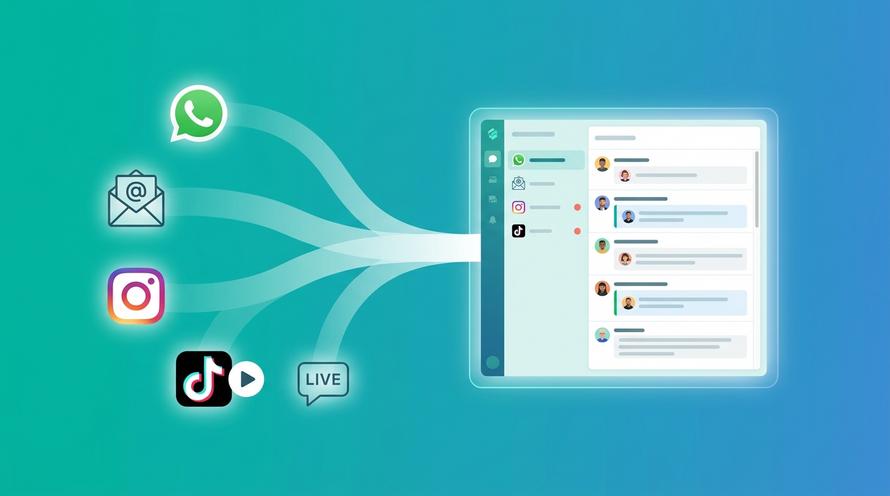
Today's customers connect through more than just email. What happens when a message comes in via live chat, WhatsApp, or Facebook Messenger while an agent is away? With Trengo, it doesn't matter. All conversations from every channel flow into one unified inbox. The team can manage inquiries from any platform, ensuring no message is ever missed, regardless of how the customer chose to reach out.
Automate and Delegate with Rules
Forget the complicated rules in Outlook. Trengo’s automation is both powerful and easy to use. You can set up rules to automatically handle conversations when an agent is unavailable. For instance, a rule can be created to assign all incoming messages for an out-of-office agent to a specific backup team member or to a general team queue. You can also automatically add labels for tracking or even trigger a sophisticated auto-reply that includes helpful links to your knowledge base or an AI-powered response that can handle common queries on the spot.
10 Professional Out-of-Office Message Samples
Need some inspiration? Here are ten professional and effective out-of-office message templates you can adapt for various situations.
The General Vacation Message
Subject: Out of Office
Thank you for your message. I am currently out of the office on vacation, returning on [Date]. I will have limited access to email and will respond to your message as soon as possible upon my return. Thank you for your patience.
The Conference or Business Trip Message
Subject: Out of Office: Attending [Conference Name]
Thank you for your email. I am currently attending [Conference Name] from [Start Date] to [End Date] and may have a delayed response time. I will be checking emails periodically. For immediate assistance, please contact [Colleague's Name] at [Colleague's Email].
The Holiday Season Message
Subject: Happy Holidays! Out of Office
Thank you for your message. Our office is closed for the holiday season from [Start Date] until [End Date]. I will respond to your email upon my return. We wish you a wonderful holiday season.
The Short-Term Absence Message e.g., Sick Day
Subject: Out of Office Today
Thank you for your message. I am unexpectedly out of the office today, [Date], and will respond to your email as soon as I return. If your matter is urgent, please reach out to the team at [Team Email Address].
The Message with a Clear Alternate Contact
Subject: Out of Office until [Date]
Thank you for your email. I am out of the office and will be back on [Return Date]. For urgent matters that require immediate attention, please contact my colleague, [Colleague's Name], at [Colleague's Email] or [Colleague's Phone Number]. Otherwise, I will respond upon my return.
The "No Access to Email" Message
Subject: Out of Office
Thank you for reaching out. I am currently out of the office until [Return Date] with no access to email. I will respond to your message when I am back in the office. For any pressing issues, please contact [Contact Person] at [Contact Email].
The Message Directing to a Help Center or FAQ
Subject: Out of Office - Resources Available
Thank you for your message. I am out of the office until [Date]. While I am away, you may find the answer to your question in our Help Center at [Link to Help Center]. For other inquiries, I will respond as soon as I can upon my return.
Cross-Channel Auto-Replies SMS, WhatsApp, etc.
Setting up auto-replies isn't just for email. For platforms like Telegram, you can create specific responses to manage customer expectations. Check out these telegram auto reply message samples for inspiration. For other channels, a simple message works well:
"Thanks for contacting us! We're currently unavailable but will get back to you within 24 hours. Our business hours are M-F, 9 AM - 5 PM."
The Lead Generation Message
Subject: Thanks for getting in touch
Hello! Thanks for your interest in our services. I am currently out of the office until [Date]. In the meantime, feel free to explore our product tour at [Link] or schedule a demo directly with our team here: [Link to Demo Calendar]. I will follow up with you personally upon my return.
The Internal-Only Message
Subject: OOO until [Date]
Hi team, I am OOO returning on [Date]. For any project-related emergencies, please reach out to [Colleague's Name]. All other items will be addressed when I get back. Thanks!
Frequently Asked Questions

To professionally say you are out of office, state the exact dates of your absence, manage expectations for your response time, and provide a clear alternative contact for any urgent matters. Always maintain a polite and concise tone, as shown in the samples provided earlier in this article.
Standard phone messaging apps like iMessage or Google Messages do not have a native out-of-office feature. However, business communication platforms are designed for this. With Trengo, you can easily set up automated replies for SMS, WhatsApp, and other messaging channels to ensure professional communication continuity.
Setting an out-of-office message for Apple Mail usually depends on your email provider. The most reliable method is to log into your email provider's web interface (like Gmail.com or Outlook.com) and set the vacation reply there. Alternatively, you can create a rule within the Mail app on macOS to automatically reply to messages, but this only works when the app is open and running.
Yes, you can appear as out of office on your calendar without sending an automatic email reply. This is typically done by creating a calendar event and marking your status as "Out of Office." For more complex scenarios, you can use rules in email clients like Outlook, but a far simpler approach is using a collaborative platform like Trengo, where your status is visible to the team internally without needing to send external replies.
Stop letting out-of-office replies be a dead end for your customers. A smarter approach ensures that every inquiry is handled promptly, strengthening customer relationships and preventing missed opportunities. With a centralized inbox and powerful automation, your team can collaborate effectively to keep conversations flowing, even when individual members are away. See how Trengo's shared inbox keeps the conversation going. Try Trengo for free today.



Let's meet
Grow your business with loyalty. Bring all of your customer contact into one, single platform to unlock delight at every step of the way.