How to Create a WhatsApp Business Community: 2026 Guide

Try Trengo for Free

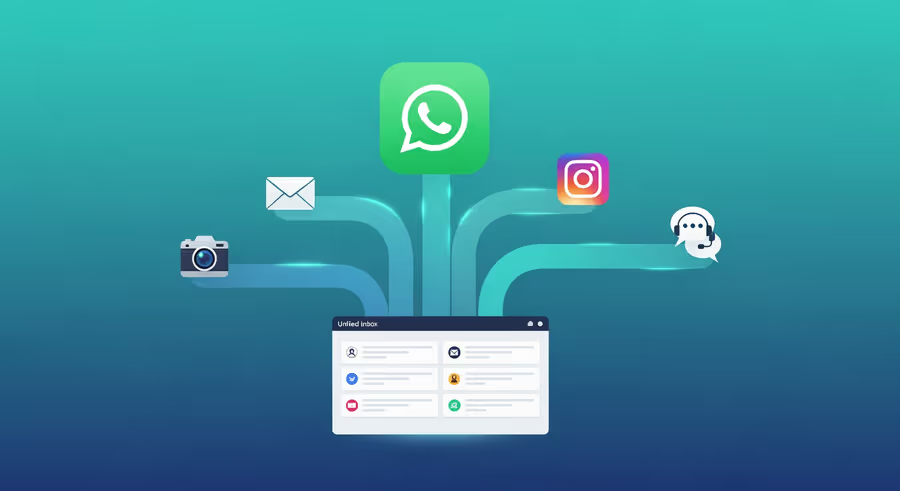
Trengo unites WhatsApp, email, web, social media, and calls in one inbox, saving your team hours of repetitive work and ensures no conversation is ever lost
WhatsApp has evolved far beyond simple one-on-one messaging. By 2026, it has cemented itself as a primary channel for customer retention and community building. For businesses, the ability to create a "Community" offers a structured way to organize multiple conversation groups under one umbrella, keeping high-value customers engaged without the chaos of unorganized group chats.
Summary: This guide covers the strategic execution of WhatsApp Communities for business growth. You will learn the technical steps to create communities on iPhone, Android, and Web, manage group hierarchies, and scale your engagement efforts using tools like Trengo to handle the resulting influx of customer messages.
TL;DR - Key Takeaways
- Communities organize chaos: They house related groups under one topic (e.g., "VIP Customers" containing "Events," "Feedback," and "Announcements").
- Broadcast capability: Admins can send messages to the entire community via the Announcement Group.
- Platform agnostic: You can create communities on iOS, Android, and limited Web versions.
- Scalability warning: Announcements generate replies. You need a unified inbox to manage the volume without overwhelming your support team.
Can I Create a Community in a WhatsApp Business Account?
Yes, absolutely. As of 2026, creating a community is a core feature available to both standard users and WhatsApp Business accounts. However, the distinction between a standard "Group" and a "Community" is vital for business strategy.
A WhatsApp Group is a single chat room where everyone talks to everyone. A WhatsApp Community is a directory of related groups. It allows you to organize different segments of your audience (e.g., distinct regions, product lines, or support tiers) under one brand umbrella.
When you create a Community, WhatsApp automatically generates an Announcement Group. Only admins can post here, but the message reaches all members of every sub-group within that Community. This is powerful for broadcasting updates, similar to how you might utilize WhatsApp Business bulk message templates for marketing campaigns.
Why Create a Community in WhatsApp Business?
The strategic value lies in organization and "notification hygiene."
- Reduced Noise: Instead of adding 500 customers to one chaotic group where they mute notifications immediately, you can sort them into relevant sub-groups.
- Unified Broadcasting: You can send a single critical update (like a downtime alert or a Black Friday sale) to the Announcement Group, and it reaches everyone across all sub-groups.
- Brand Authority: A structured Community looks significantly more professional than a generic group chat.
Step-by-Step: How to Create a Community in WhatsApp Business Account
Regardless of your device, the process is streamlined. Follow these instructions to set up your community structure.
How to Create Community in WhatsApp Business on iPhone (iOS)
- Open the WhatsApp Business app on your iPhone.
- Tap on the Communities tab located at the bottom center of the screen (icon looks like three people).
- Tap Start a New Community.
- Enter the Community Name (max 24 characters) and a description. This description should clearly state the purpose of the community (e.g., "Official Updates & Customer Support").
- Tap the Camera icon to add a community icon/logo.
- Tap Next.
- You can now Add Existing Groups or Create New Group to populate your community.
- Tap Create to finalize.
How to Create Community in WhatsApp Business on Android
- Open WhatsApp Business on your Android device.
- Tap the New chat icon or swipe left to access the Communities tab.
- Tap New Community.
- Enter the Community name, description, and upload a profile photo.
- Tap the arrow icon to proceed.
- Select Add existing groups or create new ones.
- Tap the green checkmark icon to launch your community.
How to Create Community in WhatsApp Business Web
While mobile apps offer the most robust creation tools, you can manage communities from the desktop.
- Open WhatsApp Web or the Desktop App.
- Click the Communities icon at the top of the chat list.
- Click the + icon or "Start a community."
- Fill in the name, description, and icon.
- Click the green arrow to add groups and finish the setup.
Managing Groups and Members within Your Community
Once your structure is live, maintenance is key. You will likely need to migrate existing user bases into this new hierarchy.
How to Turn a WhatsApp Group Into a Community
Technically, you cannot simply press a button to "convert" a Group into a Community. Instead, you must create a new Community (using the steps above) and then add the existing group to it.
When you add an existing group to a Community, that group becomes a sub-group. All members of that group are automatically added to the overarching Community and its Announcement channel.
How to Create a Group on WhatsApp Business (Inside a Community)
To segment your audience further (e.g., creating a "Beta Testers" group inside your "SaaS Product" Community):
- Open your Community.
- Scroll down and select Add group.
- Select Create new group.
- Name the group and add participants.
- This group now lives inside the Community, keeping your business account organized.
Scaling Community Engagement with Trengo
Here is the challenge most businesses face: Success leads to noise.
When you post in your Community Announcement Group, members cannot reply in that channel. However, they can reply to you privately. If you have 2,000 members and 5% of them reply to an announcement with a question, you suddenly have 100 open 1:1 chats on your phone.
This is where Trengo becomes essential.
1. The Unified Inbox
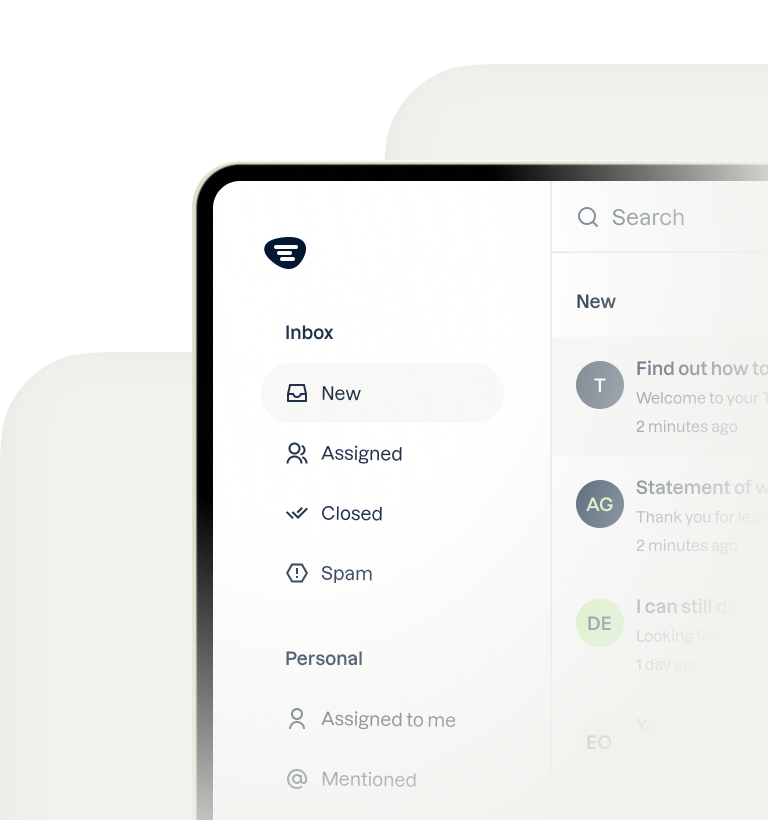
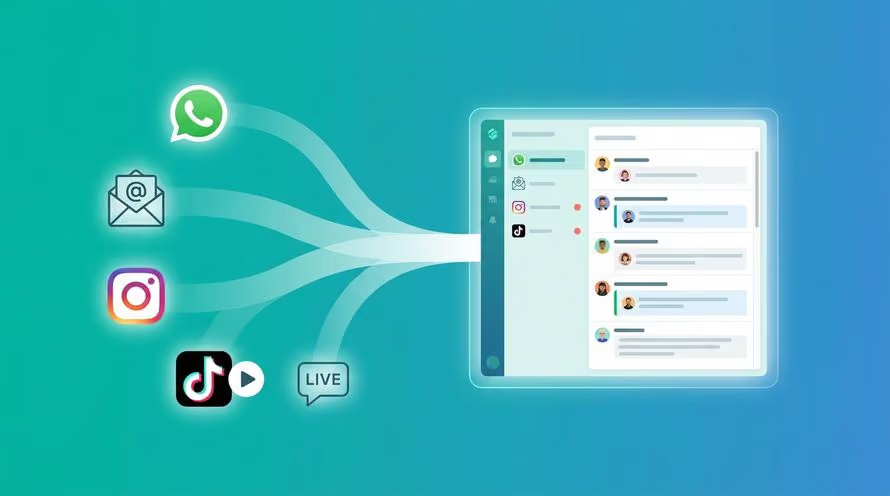
Trengo consolidates all your WhatsApp Business conversations into a single shared inbox. Instead of one manager drowning in notifications on a physical phone, your entire support team can view and answer WhatsApp queries from their dashboard, alongside emails and Instagram DMs. This is a prime example of how a team inbox transforms customer operations.
2. Automation and Chatbots
When community members reply with common questions (e.g., "What is the pricing?" or "Is this available in the UK?"), you don't want human agents wasting time on copy-paste answers. Trengo allows you to deploy AI chatbots for customer service that can intercept these replies, provide instant answers, and only route complex issues to your human team.
3. Never Miss a Lead
By assigning incoming WhatsApp chats to specific agents within Trengo, you ensure accountability. No potential sale gets lost in the "read" pile.
Troubleshooting: Why Can't I Create a Community on WhatsApp Business?
If you are struggling to find the feature, consider these common issues:
- Outdated App Version: The most common culprit. Ensure your WhatsApp Business app is updated to the latest 2026 version via the App Store or Google Play.
- Account Restrictions: If your account has been flagged for spam previously, certain features like Community creation might be restricted.
- Linked Devices: Sometimes, creating a community works best on the primary mobile device rather than a linked web session.
- Geographic Rollouts: While global, certain features sometimes roll out slowly in specific regions.
Frequently Asked Questions (FAQ)
How do I create a WhatsApp Business link for my Community?
To grow your community, you can share a direct invite link. Go to your Community main page, tap Invite members, and select Copy link or Share link. You can paste this on your social media or website. If you are integrating this across platforms, check our guide on how to add WhatsApp links to Instagram and other channels.
How can I create a business account on WhatsApp?
If you are starting from zero: Download the "WhatsApp Business" app (distinct from the standard WhatsApp), verify your business phone number, and set up your business profile (hours, website, address). For tips on managing this entry point, read about communicating your business WhatsApp number effectively.
Is the process different for Hindi or Tamil users?
The steps to create a community in WhatsApp Business in Hindi, Tamil, or any other language are identical to the English process. The only difference is the label names (e.g., "Community" might be labeled differently based on your phone's language settings). The icons and button locations remain the same.
Do WhatsApp Businesses have Community features enabled by default?
Yes. As long as you have a valid account and the updated app, the Community tab appears automatically on the interface. No special application to Meta is required.



Let's meet
Grow your business with loyalty. Bring all of your customer contact into one, single platform to unlock delight at every step of the way.